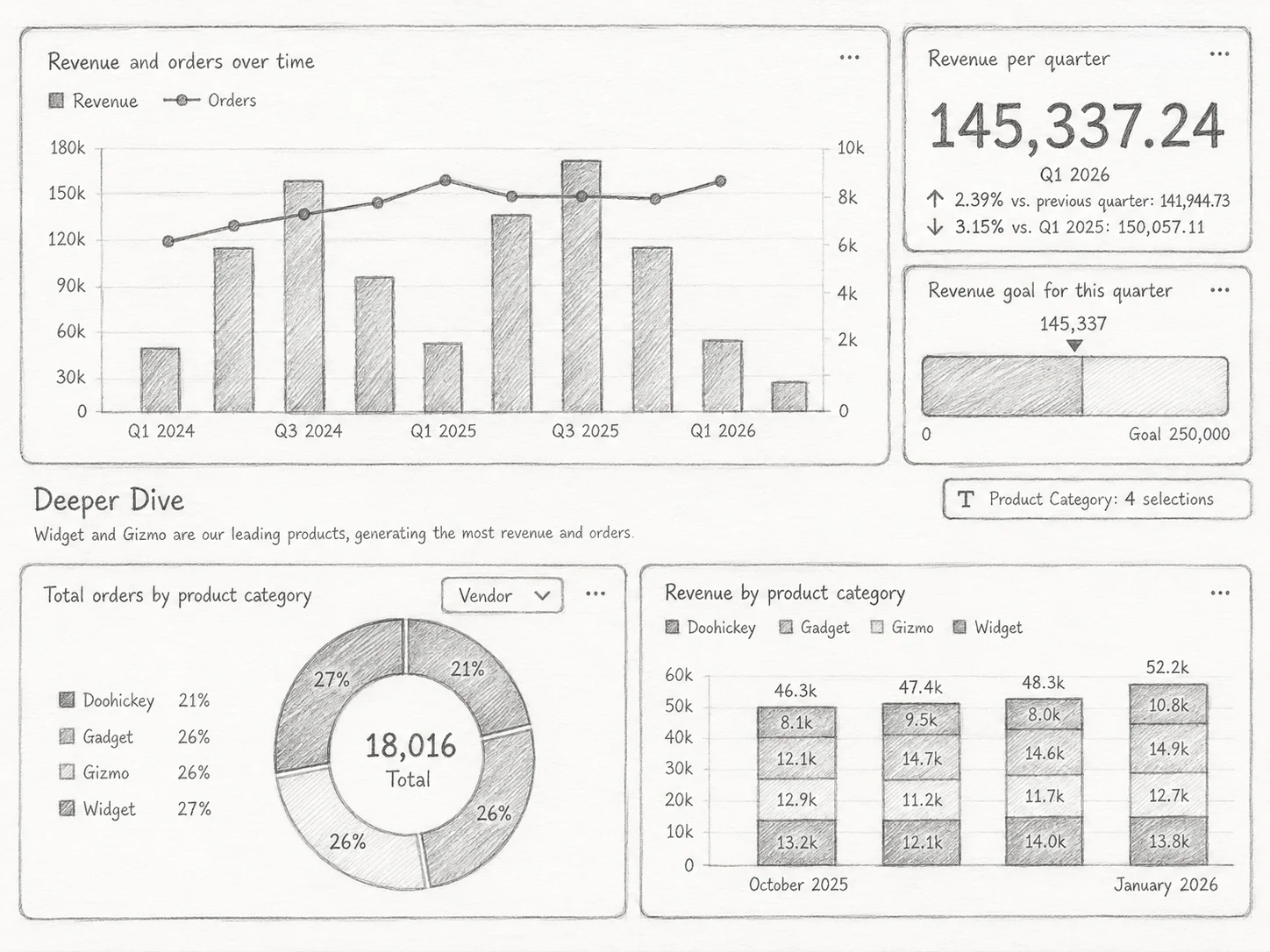

Every business app eventually grows a dashboard, and most of them disappoint in one of two ways.
The first is the org dashboard: one landing screen built for everyone, which means it’s tuned for no one. You scroll past the eight tiles that don’t apply to you to find the two that do. Nobody can change it, because changing it changes it for everyone.
The second is the personal BI dashboard — the one someone spins up in an external tool because the built-in screen was too rigid. It’s flexible, finally, but it got that flexibility by connecting straight to the database with a service account that can read everything. The careful permissions in your app don’t travel with it. (We pulled that thread all the way in Reports Without a Developer; dashboards inherit the exact same risk.)
dForge takes a third path, and it’s the same move the platform makes everywhere else: a dashboard tile isn’t a private wire to the database, it’s a saved question over the model, run as you, under your permissions. Which means a dashboard can be both personal and safe at the same time — the two things every other approach makes you choose between.
A dashboard is just tiles over things dForge already knows
A dForge dashboard is a landing surface for a folder, assembled from small configurable tiles called web-parts. Each tile wraps something the platform already does:
- KPI — a single number from a query: count, sum, average, min, or max.
- Chart — a bar, line, pie, funnel, or heatmap, grouped by a field.
- Pivot — a cross-tabulated table of rows, columns, and aggregates.
- Markdown and section headers — context and grouping.
- Folder list — navigation tiles mirroring the sidebar tree.
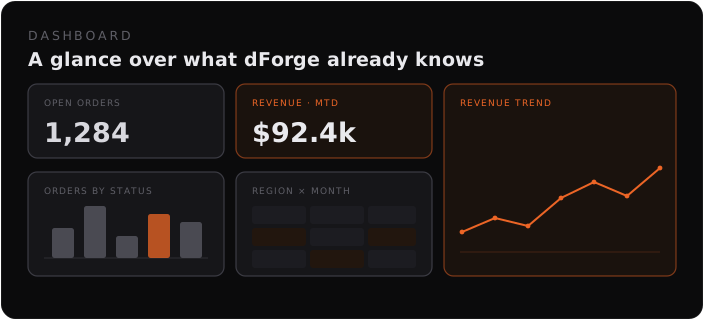
The important part is what a tile isn’t: it doesn’t embed its own data logic. KPI, chart, and pivot tiles reference an existing query and store only display options — which aggregation, which chart type, which colors. Fix the query once and every tile built on it updates. This is the same property that makes generated views and reports stay consistent: the tile is a projection of a shared definition, not a hand-wired copy that can drift. (More on that in Generated vs Hand-Built.)
Every level of the org, its own dashboard
A dForge application is organized as a tree of folders, and any folder can carry its own dashboard. That sounds like a small detail; it’s actually what lets each part of the business get a view pitched at its own level.
- A module or area folder — Sales, Support, Inventory — holds the dashboard for that domain: pipeline and revenue for Sales, queue health for Support, stock levels for Inventory. Open the folder and you land on the picture that’s right for that level.
- Sub-folders go finer still — the EU team’s board, the US team’s board — each scoped to what that team actually runs day to day.
- And every user gets a personal home dashboard sitting above all of it: a global roll-up assembled from tiles pinned across every level they’re allowed to see.
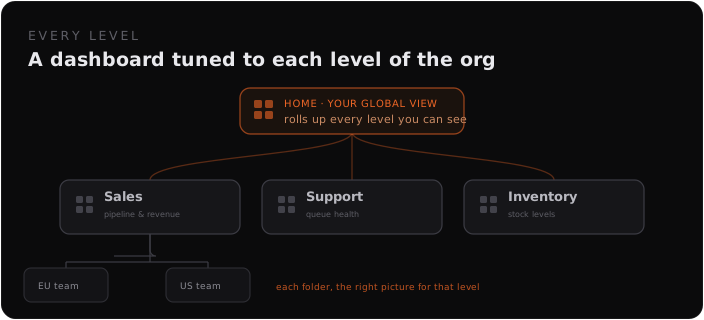
The effect is a kind of organizational zoom. A team lead lives in their team folder’s board. A department head opens the area folder and sees the rollup. An operator pins the handful of numbers they own onto home and watches the whole business at a glance. Same data, same definitions — just framed at whichever level you’re standing on.
And because a folder dashboard runs in its folder’s context, the level you’re looking at is the security boundary: you only ever see the slice of that level you’re cleared for. Understanding scales with the org chart; access never exceeds it.
Ship a default, then make it yours
Here’s the move that dissolves the “rigid vs chaotic” trade-off. Dashboards in dForge are per user, but they don’t start blank.
A module or admin ships a sensible default for a folder. You see something useful on day one. Then, the moment you edit it, your dashboard quietly forks into your own private copy. From that point on, you’re editing your version: later improvements to the default won’t disturb your layout, and your rearrangement was never imposed on anyone else.
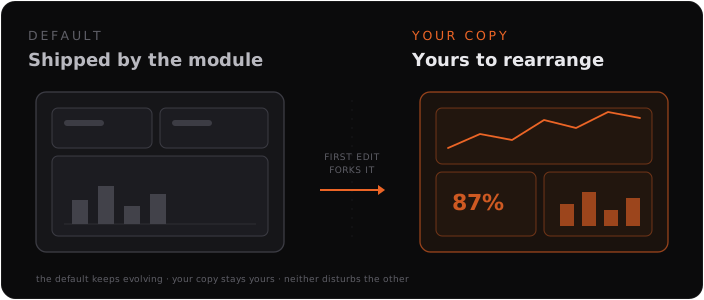
Editing is direct manipulation: a 12-column grid you drag and resize tiles on, which prevents overlaps and respects each tile’s minimum size. Add a tile, configure it, pin it, remove it.
Compare that to the two failure modes. The org dashboard is the default with editing locked — rigid. A separate BI tool is editing with no default and no security — chaotic. Forking gives you the useful starting point and the freedom to reshape it, without the two fighting. It’s the dashboard version of the self-shaped layouts story: the default is a starting point, not a cage.
Your home dashboard: pin from anywhere
Beyond per-folder dashboards, every user gets a personal home dashboard — a start page that aggregates tiles pinned from anywhere they have access.
Working a number on the Sales folder that you want to watch every morning? Pin it to home. Pinning duplicates the tile onto your home page, and the two drift independently afterward. Over time your home dashboard becomes a cockpit spanning every corner of the system you touch — Sales revenue, Support backlog, Inventory trend — on one screen.
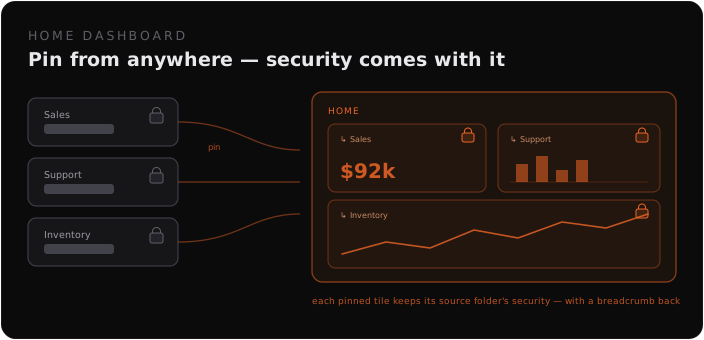
And here is the detail that makes that cockpit safe rather than dangerous: a pinned tile keeps executing against its source folder. It doesn’t get re-pointed at some all-access context just because it’s now on your home page. It runs where it came from, carries a breadcrumb back to that folder, and obeys that folder’s rules. You assemble a cross-area overview without opening a single hole.
Security travels with the tile
This is the through-line of the whole platform, stated one more time for dashboards.
Because a tile is a saved question run as you, the answer is always scoped to what you’re allowed to see:
- Folder dashboards run their tiles in the folder’s context, so they automatically respect that folder’s row-level security and settings.
- Pinned tiles run in their source folder’s context, with the same rules applied.
So a KPI can never count rows you couldn’t see; a chart can never plot a segment you aren’t cleared for; a pivot can’t reveal a column that’s hidden from you. There’s no service account behind the tile and no separate connection to govern — the tile is simply another thing you’re permitted (or not) to ask, evaluated on every refresh. The bolt-on BI dashboard gets this exactly backwards, and that’s the difference between a convenient overview and a quiet data-exposure surface.
Live without burning cycles
Dashboards can stay current without you babysitting them. Refresh all reloads every tile, and each tile can refresh on its own from its menu. A module author can also give a tile an auto-refresh interval for live operational boards — and crucially, auto-refresh pauses when the tab is in the background or the tile is scrolled out of view, so it never hammers the database for data nobody’s looking at.
One layout, every screen size
There’s no separate mobile dashboard to build and keep in sync. On narrow screens, tiles drop to a single column and stack in reading order — top rows first, then left to right — following the grid position you already set. Your desktop arrangement is the mobile arrangement. (Same principle as generated views: one definition, no second artifact to drift.)
The honest trade-offs
Per-user dashboards over the model are the right default for operational overviews — but, as with the rest of this series, it’s worth being clear about the edges.
What you give up:
- A hard tile cap. A dashboard holds up to 10 tiles by design — it’s a glance, not a deep analysis. When you outgrow it, the answer is to move detailed work into a report, not to cram the dashboard.
- Operational visuals, not an exec-BI canvas. Bar, line, pie, funnel, heatmap, and pivot cover the everyday questions. Pixel-perfect board decks and advanced statistical visuals still belong in a dedicated BI tool.
- You manage your own copy. The flip side of forking: once you’ve made a dashboard yours, later improvements to the shipped default don’t flow in automatically. That’s the deliberate cost of never having your view changed underneath you.
What you get in return:
- A useful default on day one, and full freedom to reshape it — without choosing between the two.
- A personal home cockpit spanning every folder you work in.
- Tiles that stay correct because they’re projections of shared queries, not hand-wired copies.
- Security that can’t be left off — every tile runs under its folder’s rules, pinned or not.
- One arrangement that works on desktop and mobile, and refreshes itself without waste.
The point
Most dashboards make you pick: the same view for everyone, or everyone’s own view with the guardrails off. That trade-off only exists when the dashboard is built beside the application instead of inside it.
Put the tile through the same model and the same permission stack as everything else, and the choice disappears. The org gets consistency where it matters — the shared queries, the security. The person gets a surface shaped to their actual job, pinned together from everywhere they work. The dashboard follows the user; the security follows the data.
If your current dashboards force that trade-off, get in touch — describe the overview your team actually needs and we’ll show you how it would behave.